Emoji
Emoji maker
Turn a photo into a custom emoji: 128 pixel square, transparent, readable at the size of a word. What to crop, which settings to change at small sizes, and where the file works.
Your sticker shows up here
Add a photo to start.
What the results look like
Three sample images run through this tool with the settings shown. They are illustrations on photo-like backgrounds, processed by the same code that runs on this page.
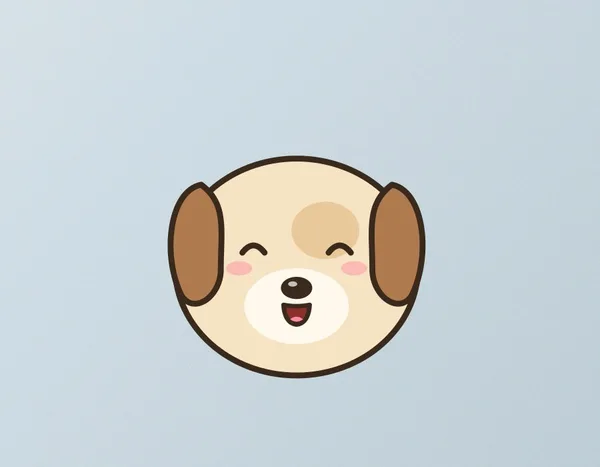 Original
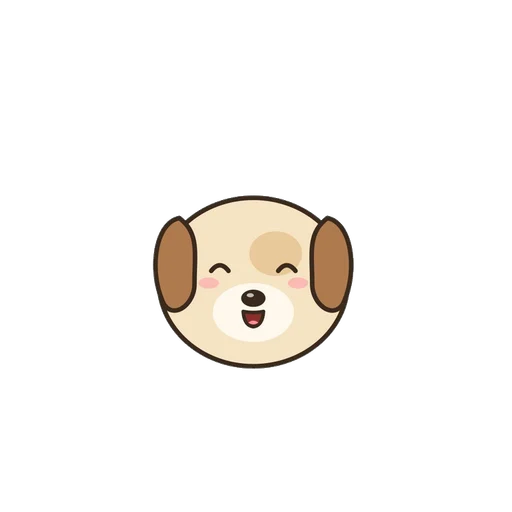 Background removed
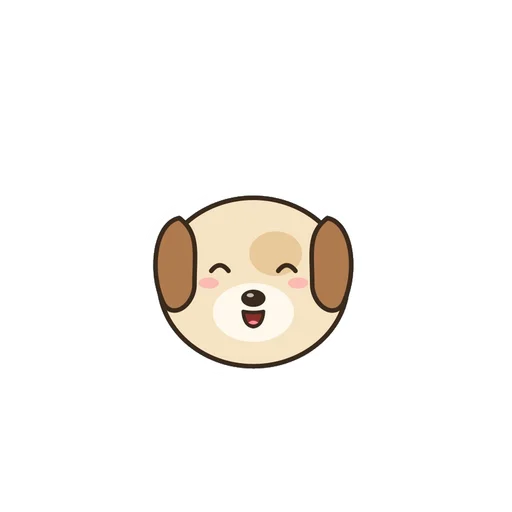 Finished sticker
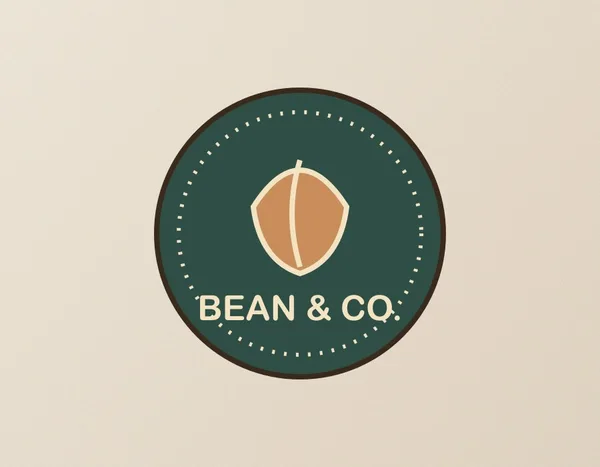 Original
 Background removed
 Finished sticker
 Original
 Background removed
 Finished sticker
An emoji is a sticker that has given up its size. Where a sticker is 320 or 512 pixels square and gets its own slot in a picker, an emoji is around 128 pixels and appears inline, at roughly 32 to 48 pixels on screen, next to text. That single difference changes what makes a good image.
What makes a good emoji image
The subject has to be readable at the size of a word. Details that make a photo interesting, a patterned shirt, a busy background, small jewellery, all vanish. What survives is silhouette, colour and one strong shape.
So the job before you upload is not editing, it is choosing: pick the photo where the subject is already reduced to a shape. A face, a head and shoulders, a hand holding something, a pet's head. Crop tight. The emoji is going to be small no matter what, and the only variable you control is how much of the frame the subject fills.
The 128 pixel export
Pick custom emoji from the size menu and the tool exports a 128 pixel square with transparency and the white outline applied. Two settings are worth adjusting for this size:
- Outline down to eight or ten pixels. At 128, a fourteen pixel border is nearly a tenth of the image on each side and it crowds the subject.
- Tolerance up slightly. Emoji are viewed small, where a small halo is invisible, but a chewed edge is not. Erring toward a cleaner cut is the right call.
Where these emoji actually work
A 128 pixel PNG is what most chat and community apps expect for a custom emoji. Discord uses this size for inline emoji. Slack uses a comparable size for workspace emoji. Other community platforms accept the same kind of file with their own upload limits.
What these files are not: a replacement for a Unicode emoji. You cannot type them, and they only show up where the platform supports custom images. They are reaction images in emoji clothing, and that is exactly what makes them useful.
Emoji are usually made in sets
One custom emoji is a novelty; twelve that share a border and a canvas are a vocabulary. People use emoji sets the way they use reactions: a small, consistent group that covers the common moods. Batch mode is built for this, because twelve images processed one at a time will not share a border width no matter how careful you are.
From photo to emoji in practice
- Crop to the subject before uploading. Tight crops beat any slider setting.
- Untick background removal if the image is already transparent, keep it on if the background is flat.
- Set the outline to around ten pixels.
- Pick custom emoji for 128 pixels, or one of the sticker sizes if the target app wants a larger canvas.
- Download, or download the whole set as a ZIP.
Related tools
- Discord sticker maker for the server side rules
- Slack emoji maker for workspace emoji
- Emote maker for Twitch style emotes
- Image to emoji for the conversion itself
- Photo to sticker converter for full size stickers
Questions
What size should a custom emoji be?
This tool exports 128 by 128 pixels, which is the size most chat and community platforms use for inline emoji. A larger source is fine; the app will scale it down, but the file gets heavier for no visible gain.
Can I animate an emoji?
Some platforms accept animated emoji files, but this tool exports still images. An animated emoji needs an animation export at the platform's frame and size rules.
Why does my emoji look muddy?
Usually because the subject was too small in the original photo. Cropping tighter before upload fixes more muddy emoji than any other change, because it lets the subject use the whole 128 pixel canvas rather than a corner of it.